
PROMPT:
FUNCTION:
Generates, extends, summarises or problem-solves using only text
The most common and versatile input-output mode
Ideal for drafting, exploring ideas, and asking for step-by-step support
POSSIBLE APPLICATIONS:
Drafting documents or communications
Brainstorming strategies or workarounds
Outlining plans or step-by-step instructions
REFLECTIONS:
What kinds of problems did it handle well?
Where might this replace or speed up a task you normally do alone?
PROMPT:
FUNCTION:
Turns written ideas into visual outputs
Moves you from abstract thinking to concrete visualisation
Helps quickly communicate a concept or story
POSSIBLE APPLICATIONS:
Concept art, slides, or diagrams
Mockups for proposals or campaigns
Visioning and storytelling tools
REFLECTIONS:
How could this support your communication or design work?
Would this reduce your reliance on external visual resources?
PROMPT:
FUNCTION:
Translates natural language into working code or scripts
Enables non-coders to prototype tools and workflows
Useful for technical enablement and automation
POSSIBLE APPLICATIONS:
Creating dashboards, calculators, or automations
Enhancing data workflows
Rapid prototyping or learning technical concepts
REFLECTIONS:
Could this unlock capabilities you usually outsource or delay?
Where might code generation help solve a small-scale problem?
PROMPT:
FUNCTION:
Converts AI-generated content (e.g. code, text, tables) into downloadable formats
Supports creating shareable assets directly from chat
Useful for packaging outputs like reports, spreadsheets, or scripts
POSSIBLE APPLICATIONS:
Exporting code, summaries, or data into a ready-to-use file
Creating templates or documents from scratch
Sharing work outputs with colleagues or clients
REFLECTIONS:
How could this streamline repetitive or manual content creation?
What types of documents or files do you regularly prepare that could be auto-generated?
PROMPT (SPOKEN):
FUNCTION:
Captures thinking, brainstorming, or dictation via speech
Supports hands-free interaction
Great for working through ideas in real time
POSSIBLE APPLICATIONS:
Voice notes turned into action steps
Quick idea capture
Low-friction input for those who prefer speaking over typing
REFLECTIONS:
Where could this help you capture insights before they’re lost?
How might this support inclusive input styles across your team?
PROMPT:
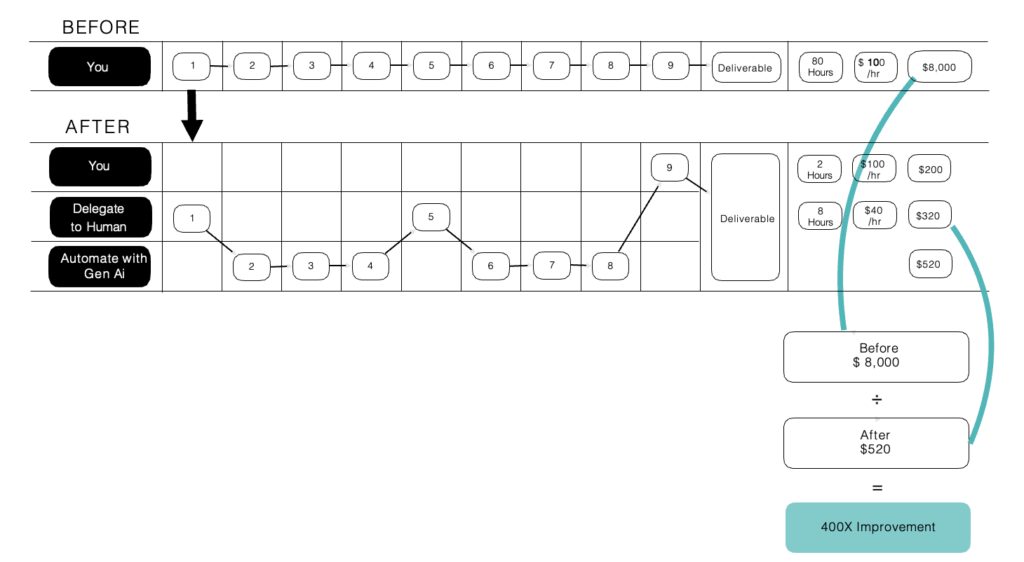
// Can you explain this slide to me?
FUNCTION:
Interprets and explains uploaded visuals
Acts as a visual analyst, coach, or simplifier
Translates images into useful written insight
POSSIBLE APPLICATIONS:
Clarifying complex diagrams or charts
Reviewing presentations
Summarising visual data
REFLECTIONS:
Could this save time when interpreting reports or slides?
Where might it help team members engage with visual information more easily?
PROMPT:
FUNCTION:
Searches the web for current, real-time information
Acts like a research assistant or briefing engine
Useful for updates, summaries, and environmental scans
POSSIBLE APPLICATIONS:
Market scanning or competitor research
Prep for meetings or presentations
Staying informed on emerging topics
REFLECTIONS:
Could this replace or enhance your usual research flow?
How confident are you in the sources or outputs?
PROMPT:
FUNCTION:
Reads, summarises, or analyses documents and structured data
Works well with PDFs, spreadsheets, or long-form content
Quickly surfaces insights or summaries
POSSIBLE APPLICATIONS:
Summarising reports or policies
Extracting insights from HR or project data
Spot-checking for errors or trends
REFLECTIONS:
How could this reduce manual document review?
What routine reports could be AI-assisted?
PROMPT (SPOKEN):
FUNCTION:
Enables full conversational interaction with AI using speech input and spoken output
Supports hands free, natural dialogue
Useful for exploring ideas in real-time or simulating conversational coaching, briefing or thinking aloud
POSSIBLE APPLICATIONS:
Talking through decisions or priorities
Exploring options or generating ideas in a coaching-style dialogue
Accessibility support or multitasking input/output
REFLECTIONS:
Did the conversation feel natural and helpful?
Where could you imagine using AI in real-time dialogue—for yourself or your team?
PROMPT:
FUNCTION:
Explains code in plain language
Helps with reviewing, learning, or collaborating across technical boundaries
Makes code more accessible for non-developers
POSSIBLE APPLICATIONS:
Code review
Learning technical skills
Debugging or improving existing tools
REFLECTIONS:
When might you need to explain code to someone else (or yourself)?
How might this support cross-functional collaboration?
Ask the AI to generate a first draft of your role plan. Don’t worry about getting it perfect – this is just a starting point.
Click on this link to get drafting: Ai ROLE PLAN GPT
Read the AI’s draft and interact with it to make it more relevant to your work.
Try asking the AI to revise or replace specific items.
Some helpful prompts:
// I don’t do [name the column]. Please revise.
// Remove [item] and replace it with [your suggestion]
// Remove [Name what you would like removed] and replace with another suggestion relevant to my role.
Keep going until the plan feels about 90% right. It doesn’t need to be perfect—it just needs to be useful.
If your AI Role Plan is not in a table or structured format, use this prompt:
// Provide this in a table
If the format already works for you, move on to Step 4.
Once you’re happy with the plan, copy and paste it into a format that works for you:
PowerPoint, Excel, or Word.
You’ll use this version in later activities.
Share your draft AI Role Plan with a peer, colleague, or your People Leader.
Ask them for their thoughts:
What stands out?
What’s missing?
What might be worth trying first?
Return to the same AI chat to make updates if needed.
Set up a short conversation with one of your peers. Use the following prompts to guide it:
Share your AI Role Plan
Name the deliverable you’ll start testing AI on
Say what you’re excited about
Say what you’re unsure or curious about
This is a conversation, not a presentation, use it to reflect and exchange ideas.
To make your AI Role Plan easy to access and build on, create a Project in ChatGPT.
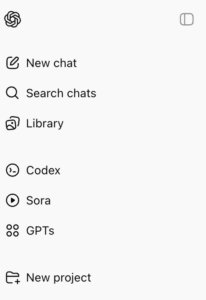
1. Click “Create project” in the sidebar
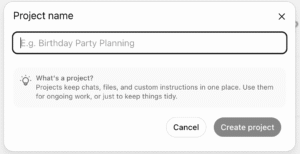
2. Give it a clear name, like “AI Role Plan – [Your Name or Team]”
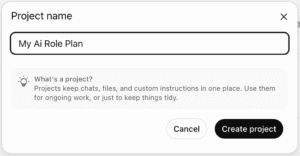
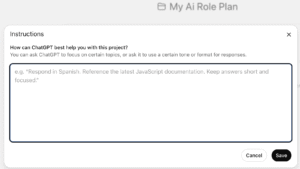
3. Save your AI Role Plan in the chat, and add any related files or instructions
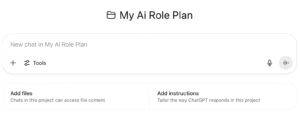
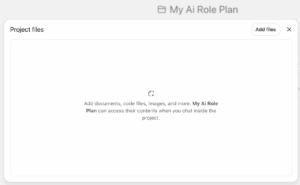
4. Use this space to return to your plan, track updates, or explore new use cases
You’ll refer to this project during the workshop and it will grow with you as your use of AI develops.
_____________________
TIPS:
How to Use Projects Well and Why It Matters
Once your Project is created, treat it as a dedicated workspace. You can:
- Start new chats directly within the Project
- Move existing chats into it (like your AI Role Plan conversation)
- Keep related chats, files, and notes in one place
This helps you stay focused, organised and able to build on your thinking over time.
WHY USE PROJECTS:
Projects are designed to support ongoing, purposeful work. Here’s how they help:
ORGANISATION: Everything related to your topic (chats, prompts, files, feedback) stays grouped. No more digging through your chat history.
CONTINUITY: When your work is in one place, ChatGPT can track the context better. This makes your interactions more consistent and useful, especially when you’re developing ideas across multiple sessions.
FOCUS: Each Project can have its own custom instructions. You can tell ChatGPT exactly how you want it to respond for that project – without changing your settings for everything else.
BEST PRACTICE:
If a chat relates to your AI Role Plan (or any other focused topic), start it inside the Project. It keeps the work connected and easier to return to when you’re ready to build on it.