
PROMPT:
Click on this link to get drafting:
WHAT YOU’RE DOING:
You’re generating a first version of your AI Role Plan with the help of a Custom GPT. You’re not aiming for a perfect plan you’re creating something you can work with. This is the moment you move from a blank page to a draft that gives you something concrete to reflect on and improve.
WHY THIS MATTERS:
Starting is often the hardest part. This step gives you a low-pressure entry point, something to respond to, not something to get right. It shifts your mindset from “What should I do with AI?” to “Let’s see what this looks like in my context.” The draft becomes a mirror for your thinking, a way to surface what fits, what doesn’t, and what could.
PROMPT:
Read the draft created in Step 1, then interact with the AI to revise or improve it using prompts like:
Repeat this process until the plan feels about 90% right. It doesn’t need to be perfect, it just needs to be useful.
WHAT YOU’RE DOING:
You’re reviewing the draft and working with the AI to improve it. This is an editing and shaping process, not just accepting what’s given, but treating the AI as a co-designer. You’re building clarity through feedback, iteration, and dialogue.
WHY THIS MATTERS:
This is where the real value starts to emerge. You’re not just receiving information, you’re learning how to direct it. This step strengthens your ability to engage with AI critically and constructively. It builds the habit of refining, not rushing. You’re practising how to collaborate with AI to produce work that feels relevant, personal, and ready to use.
PROMPT:
// Provide this in a table.Use this only if your AI Role Plan isn’t already structured in a clear table or document-style format.
WHAT YOU’RE DOING:
You’re asking the AI to organise the content into a format that is easy to read, share and use, typically a table or a structured layout.
WHY THIS MATTERS:
Clarity leads to action. Structuring your Role Plan into a table or well defined format makes it easier to review, discuss and refer back to later. It turns your ideas into something that looks and feels like a real plan, not just a list. This step reinforces the shift from exploration to something tangible and ready for real-world application.
PROMPT:
(No AI prompt needed for this step, this is about saving your work.)
WHAT YOU’RE DOING:
You’re saving your completed Role Plan in a format that works for you; Word, Excel, PowerPoint, or another file type that suits your workflow.
WHY THIS MATTERS:
Saving the plan turns it into a reusable asset something you can come back to, update, and use in future discussions. It also signals that your thinking is complete enough to share, test, or apply. This reinforces a mindset of progress over perfection and builds the habit of documenting AI-supported thinking.
Meet with your peers and/or people leader
Ask them for their thoughts:
What stands out?
What’s missing?
What might be worth trying first?
Return to the same AI chat to make updates if needed.
WHAT YOU’RE DOING:
You’re sharing your AI Role Plan with someone else, a peer, a colleague, or your People Leader, and inviting feedback. You’re treating the plan as a working draft, not a finished product.
WHY THIS MATTERS:
Working with AI doesn’t mean working in isolation. Sharing your plan allows others to challenge, refine, and build on your thinking. It also helps normalise collaborative AI use inside teams and organisations. This step builds relational confidence and shows that your AI-supported thinking holds up in dialogue with others.
Set up a short conversation with one of your peers. Use the following prompts to guide it:
Share your AI Role Plan
Name the deliverable you’ll start testing AI on
Explore what you’re excited about
Explore what you’re unsure or curious about
This is a conversation, not a presentation, use it to reflect and exchange ideas.
WHAT YOU’RE DOING:
You’re setting up a short conversation with a peer to reflect on your AI Role Plan, share where you’re starting, and talk about what you’re excited or uncertain about.
WHY THIS MATTERS:
Talking it through with someone else deepens your clarity and strengthens your commitment. This is where private planning becomes public dialogue—where ideas gain traction, feedback, and encouragement. It also reinforces that GenAI is not just a solo tool, but something to be discussed, challenged, and improved together.
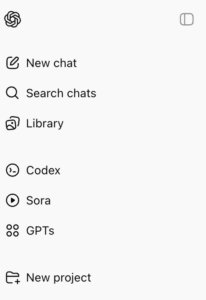
To make your AI Role Plan easy to access and build on, create a Project in ChatGPT.
1. Click “Create project” in the sidebar
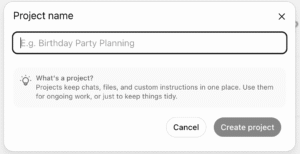
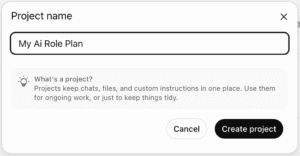
2. Give it a clear name, like “AI Role Plan – [Your Name or Team]”
3. Save your AI Role Plan in the chat, and add any related files or instructions
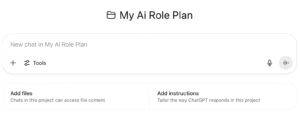
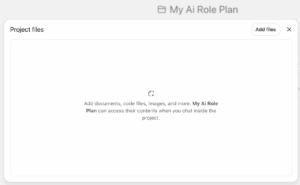
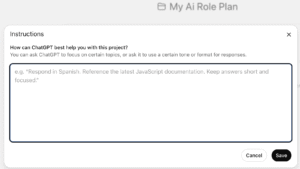
4. Use this space to return to your plan, track updates, or explore new use cases
You’ll refer to this project during the workshop and it will grow with you as your use of AI develops.
TIPS:
How to Use Projects Well and Why It Matters
Once your Project is created, treat it as a dedicated workspace. You can:
- Start new chats directly within the Project
- Move existing chats into it (like your AI Role Plan conversation)
- Keep related chats, files, and notes in one place
This helps you stay focused, organised and able to build on your thinking over time.
WHY USE PROJECTS:
Projects are designed to support ongoing, purposeful work. Here’s how they help:
ORGANISATION: Everything related to your topic (chats, prompts, files, feedback) stays grouped. No more digging through your chat history.
CONTINUITY: When your work is in one place, ChatGPT can track the context better. This makes your interactions more consistent and useful, especially when you’re developing ideas across multiple sessions.
FOCUS: Each Project can have its own custom instructions. You can tell ChatGPT exactly how you want it to respond for that project – without changing your settings for everything else.
BEST PRACTICE:
If a chat relates to your AI Role Plan (or any other focused topic), start it inside the Project. It keeps the work connected and easier to return to when you’re ready to build on it.